Schedule a Round
Line up Saturday’s game during the week — calendar invite, players, and wagers all set before you reach the first tee.
Play now vs. schedule for later
From the Home screen you have two ways to set up a group round:
- Play with friends: you’re at the course, so start the round right away.
- Schedule (the pill under the play cards): set the round up for a future date and time. Everything you’d normally pick at the first tee — course, players, games, stakes — gets locked in ahead of time, and the round waits for you in Upcoming.
Scheduling is how you turn “we should play Saturday” into an actual, locked-in game your whole group has on their calendar.
Scheduling a round
Tap Schedule on the Home screen and walk through the same setup as a live round:
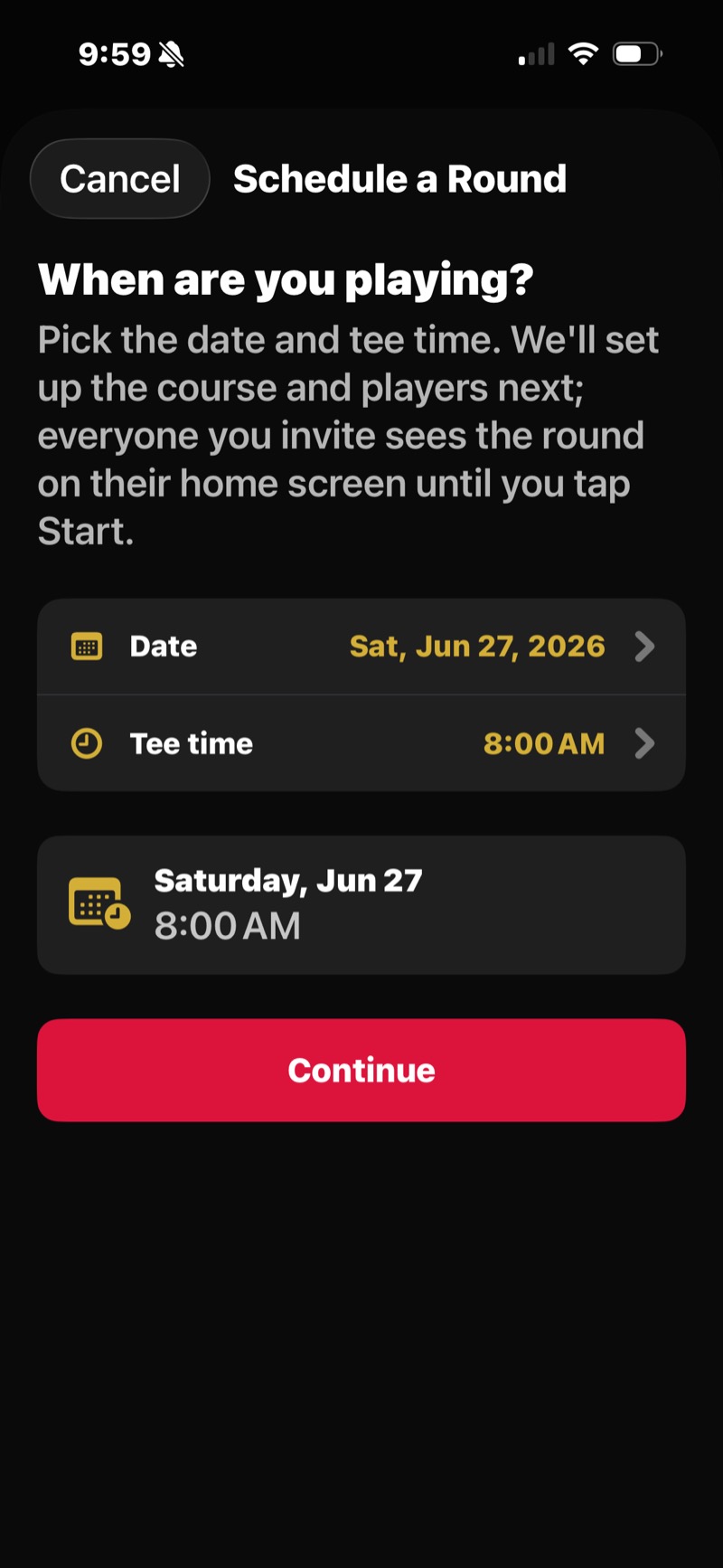
- Date & tee time: pick when you’re playing. It starts at the next 8:00 AM. Change the date and time, then tap Continue.
- Course & tees: pick the course and tee.
- Players: add friends who already have FOREPAID, or add a guest for anyone who doesn’t. You can give each player their own tee here.
- Games & stakes: pick your games (Nassau, Skins, Wolf and the rest), set the stakes, and choose your Golfcaster and trash-talk level. See Games & Bets.
Tap the button at the bottom. It shows your tee time, like Schedule for Sat 8:00 AM (or Schedule Friendly Round with no games on). The round is saved for that date and you land on its detail screen.
Players with the app get a push when you add them. Everyone with the app also gets reminders: one at 6 PM the evening before, and one two hours before tee time.
Where it shows up — Upcoming
Scheduled rounds live in the Upcoming area at the top of your Home screen. Your next round shows as a compact pill; if you’ve got more than one lined up, tap to see the full list.
Tap any upcoming round to open its detail screen: course, tee time and players. The host also gets Start Round Now, Send calendar invite and Cancel Round. Invited players see a note that the host will start the round, plus Leave Round.
Calendar invites
From a scheduled round you can send a calendar invite so the tee time lands in everyone’s calendar app — just like a Calendly or Square appointment.
- The invite includes the course, date and time, who’s playing, and the wagers on the line, plus the trash-talk level, so everyone knows what they signed up for.
- Tapping it adds the round to your iPhone Calendar with a reminder.
- Players who have the app get the round added to their iPhone calendar the next time they open FOREPAID, after they allow calendar access once. It’s added once and doesn’t update if plans change. The invite link is for buddies who don’t have the app yet.
Starting it on the day
When the day comes, open the round from Upcoming, tap Start Round Now, then Start to confirm. The round goes live, scoring opens, and your Golfcaster kicks off the first tee. Everything you set during scheduling is already in place. No re-entering players or stakes.
Changing or canceling
As the host, tap Cancel Round on the detail screen. It comes off everyone’s Upcoming list and their tee-time reminders stop. FOREPAID doesn’t send a cancel notice, so give the group a heads-up. If the round was added to anyone’s iPhone calendar, they’ll need to delete that entry themselves. If plans change, cancel and reschedule. It takes a few taps.