Getting Started
From signing in to settling your first round.
1. Sign in
FOREPAID uses a 6-digit email code. No password to remember.
- Enter your email on the sign-in screen.
- Tap Email Me a Code.
- Type the 6-digit code from your inbox into the app, and you're signed in.
Each code works once. If it doesn't show up, tap Resend on the code screen and use the newest one. If the email never arrives, check spam first. Still missing? Email support@forepaid.app.
2. Set up your profile
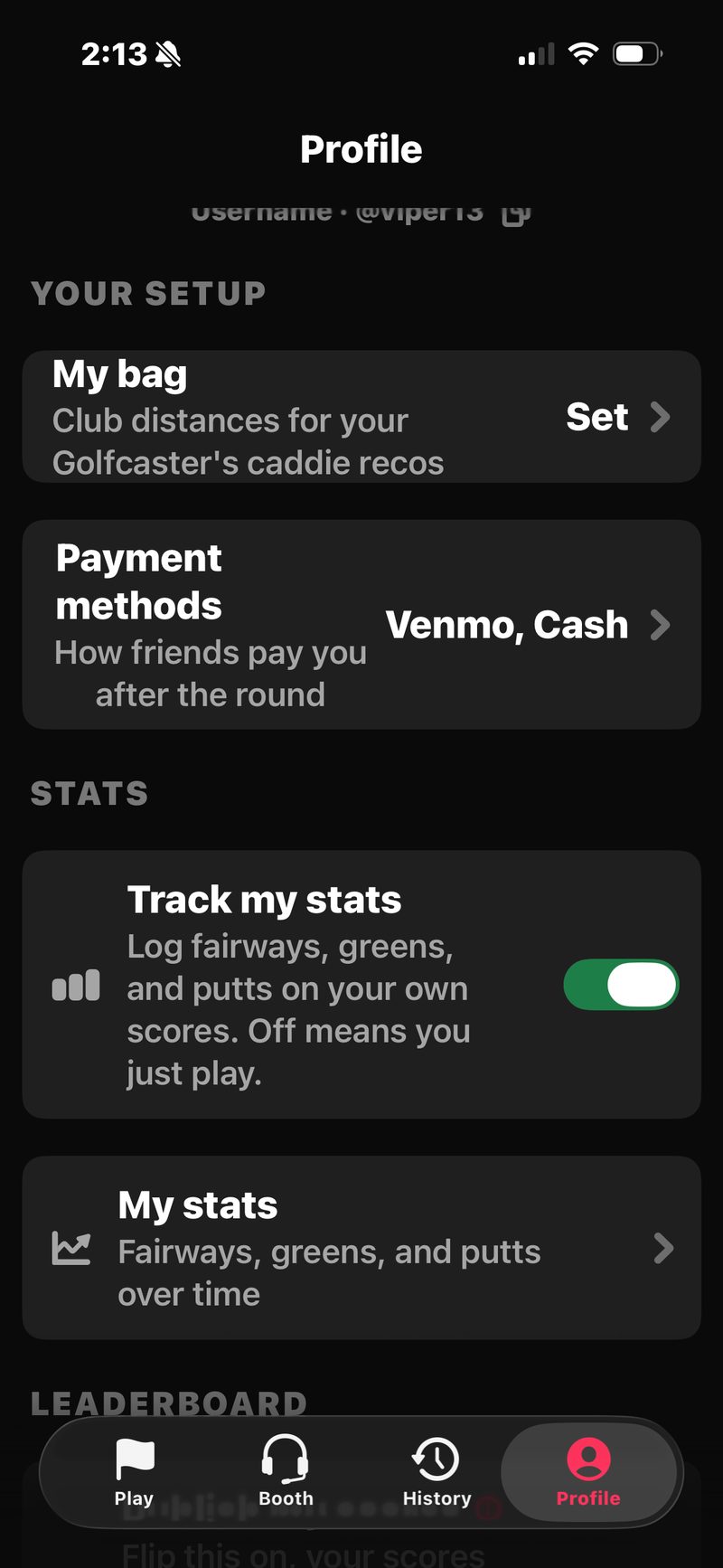
The first time you sign in, the Set up your profile screen asks for one thing: your first name. You also get an @username picked for you. Everything else is optional and can wait: last name, handicap, mobile number, Venmo, and an Accept cash switch (on by default).
After that, everything lives on the Profile tab at the bottom of the screen.
- Name and photo. Tap your name to change it, or tap the photo to add or replace one. Scorecards show "First L." everywhere except the Profile and Friend Search screens.
- @username. Everyone has one. Tap it to change it. Friends can find you by name or @username when they add players to a round.
- Handicap. See Set your handicap below.
- YOUR SETUP. My bag sets your club distances so your Golfcaster can name your club. Payment methods is how friends pay you after a round.
- STATS. Track my stats (on by default) adds fairways, greens and putts to your own score entry. My stats shows the totals.
- LEADERBOARD. Publish my scores is off by default. Flip it on to show up on the board.
- ACCOUNT. Your email, your phone number (add it so round invites reach you), and notifications.
3. Pick your Golfcaster
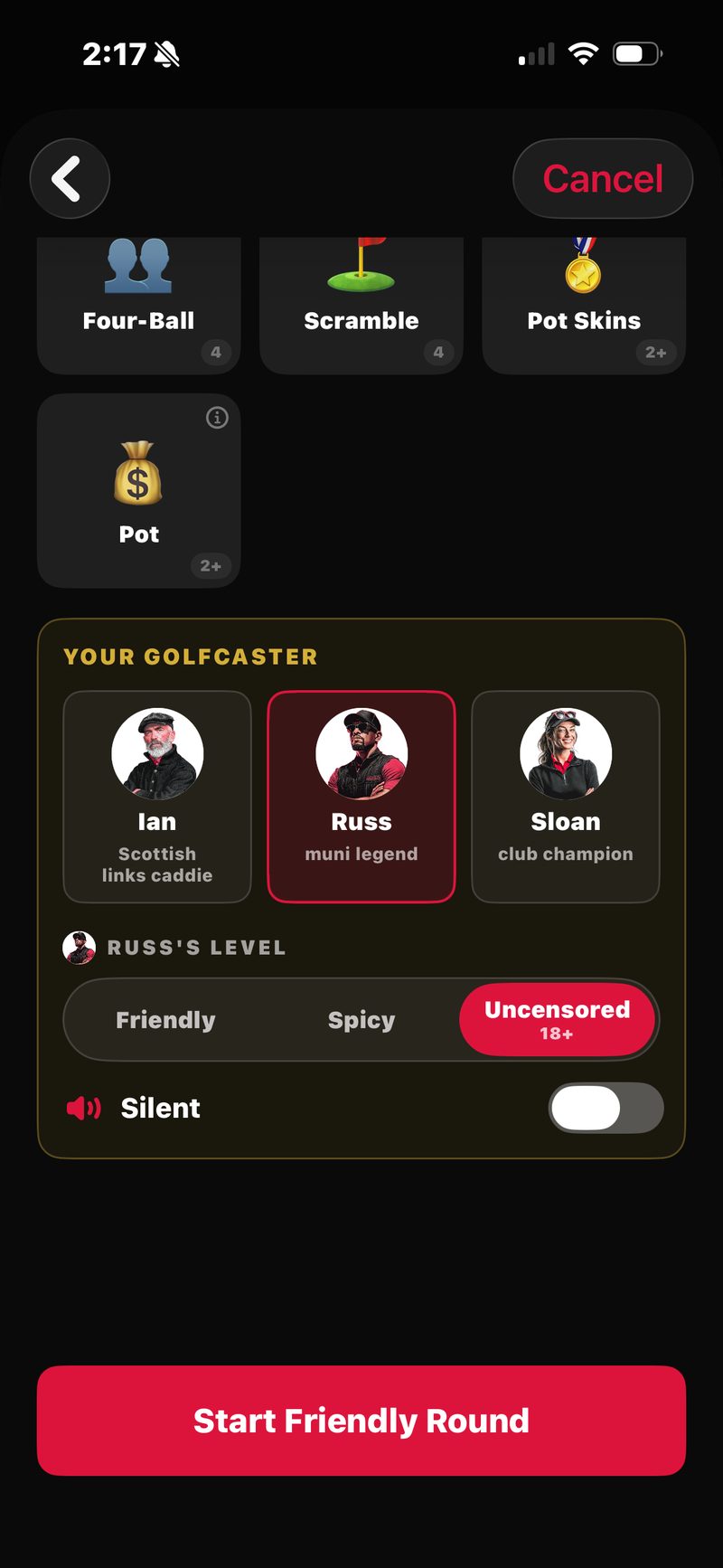
Every round gets a voice. FOREPAID has three AI Golfcasters: Russ (the muni legend, and the default), Ian (the Scottish links caddie) and Sloan (the club champion). Your Golfcaster announces every player to the first tee by name, calls your birdies, and roasts your blow-ups. No setup required.
The host picks the voice and how hard it goes on the Golfcaster card, the last card on the Game Setup screen. There are three trash-talk levels:
- Friendly. Good-natured, no hurt feelings. Everyone starts here.
- Spicy. Locker-room energy.
- Uncensored. Adults only. It’s the host’s call.
Setup remembers the voice and level you used last time. Ian and Sloan download in the background the first time. If one isn’t ready yet, you can still start, and Russ covers until they are.
The same card has a Silent switch that keeps the round quiet on the host’s phone. Anyone can mute the Golfcaster on their own phone during the round. The host can change the level, or switch Golfcasters, mid-round from the ☰ MENU. Want to hear them first? Open the Booth tab. For the full breakdown, see The Golfcasters.
4. Set your handicap
Two ways to have one. Let the app build your FOREPAID Handicap from the rounds you play (nothing to enter, it updates itself), or enter your own number from 0.0 to 54.0. See Handicaps for how it’s computed. Either way, the number locks for each round once the host taps Start Round.
5. Add your payment handles
On the Profile tab, tap Payment methods and add the handles you use: Venmo, Cash App, Zelle, or any mix.
These show up on the Settle screen when someone owes you. Venmo and Cash App open with the amount filled in. Zelle copies your email or phone so they can pay you from their bank app. FOREPAID never touches the money. We just route the buttons.
Handles are optional. Pay in cash is on by default, so you can host a money round without adding anything. If you turn cash off and have no handle, the app asks you to add one before a money round can start.
6. Start your first round
When you tap Play with friends, you're the host of that round. The host picks the course, the tees, the players, and the games. Joiners come in with whatever the host set, and settings lock the moment you tap Start Round.
Tap Play with friends on the Play tab.
- Course and tee. One screen. Pick from Nearby or Your Usual (courses you’ve played), or search by name. Then pick your tee. The tee sets the Course Rating™ and Slope Rating® used for net scores. Can’t find your course? Try adding the city to the search. Still missing? Email support@forepaid.app and we’ll chase it.
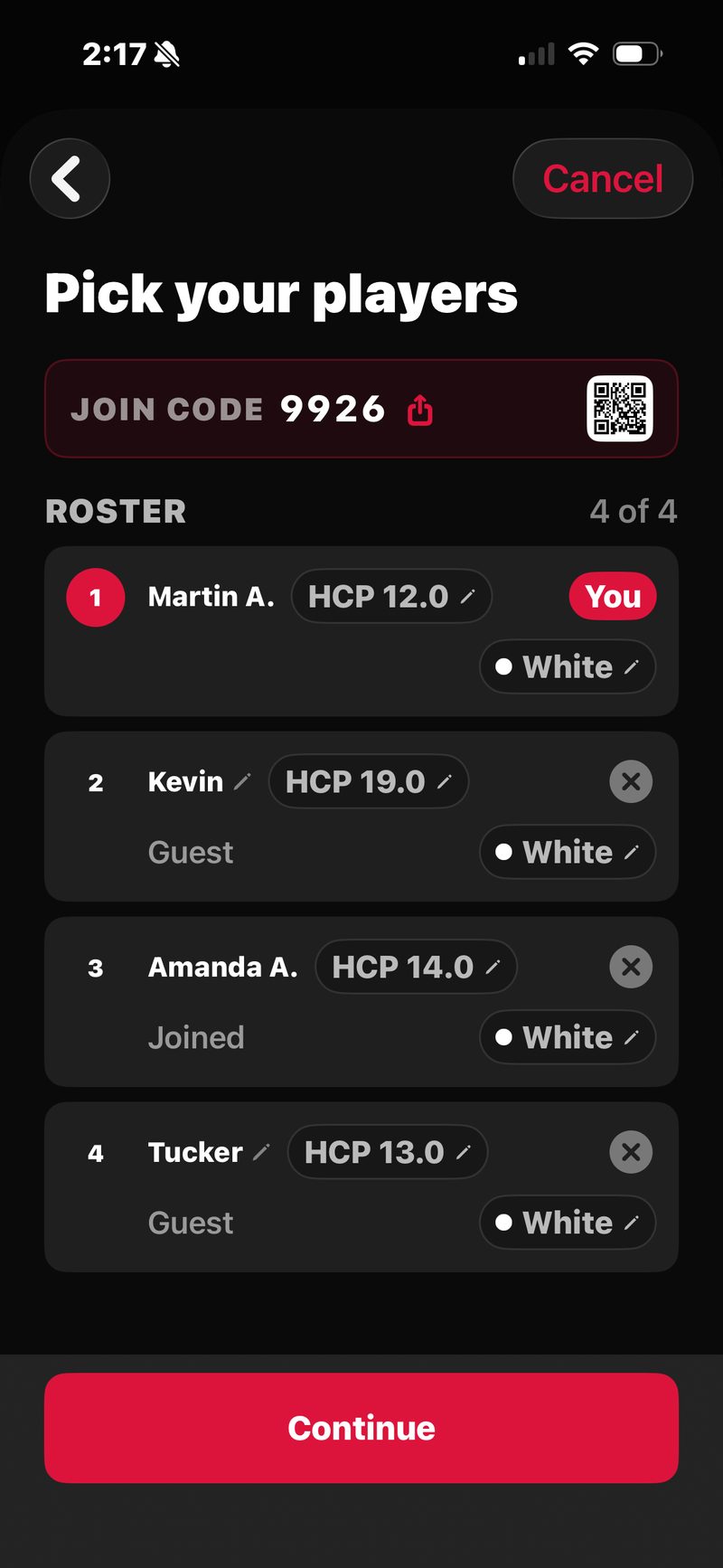
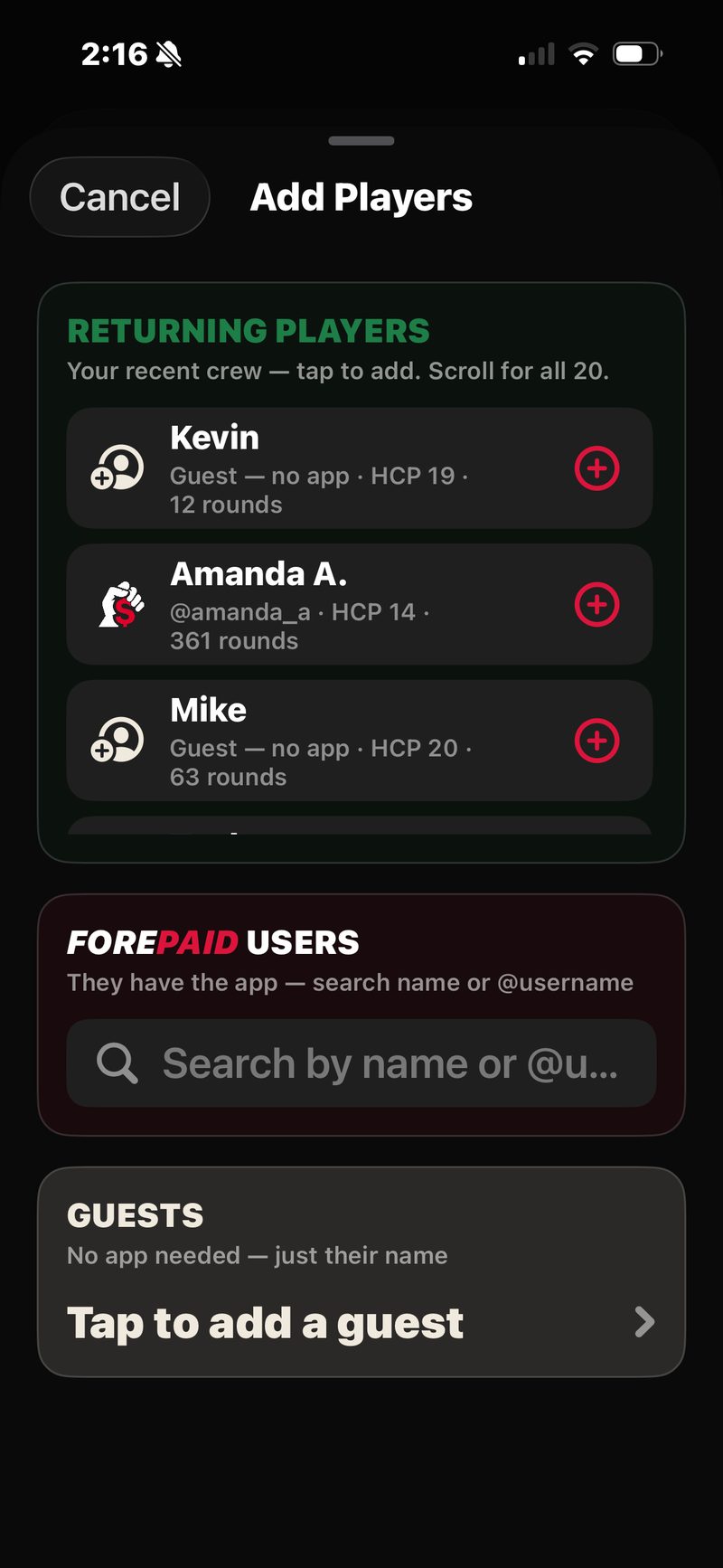
- Pick your players. Up to three others. Tap to add a player and you get three choices: RETURNING PLAYERS you’ve played with before, FOREPAID USERS you search by name or @username, and GUESTS who don’t have the app. A guest just needs a name and a handicap. A join code and QR sit at the top so friends can join from their own phones.
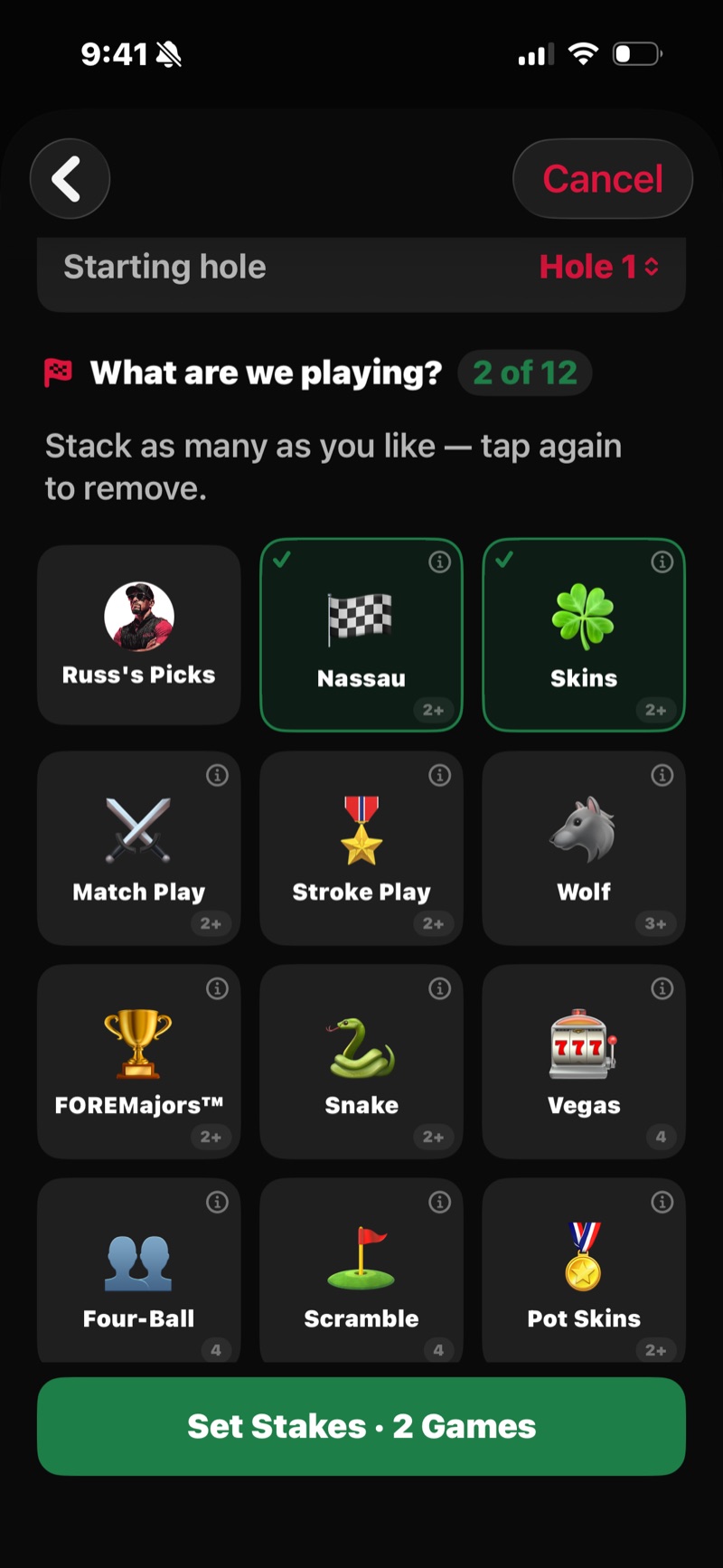
- Game Setup. Pick 18, Front 9 or Back 9, and a starting hole if you need one. Then pick your games. The first tile is your Golfcaster’s Picks (like Russ’s Picks): three one-tap setups, Easy ($5/$5/$5 Nassau), Standard ($10/$10/$20 Nassau plus 25¢ Skins) and All the Smoke ($20/$20/$40 Nassau plus $5 Skins). Or tap the game tiles yourself (Nassau, Skins, Match Play, Stroke Play, Wolf, FOREMajors, Snake, Vegas, Four-Ball, Scramble, Pot Skins, Pot) and tap Set Stakes. See Games & Bets for what each game does.
- Not wagering? Pick no games and the button reads Start Friendly Round. Your Golfcaster still calls the round. There’s just no money, no settling, and nothing money-related in the calls.
- Golfcaster card. Last card on the screen. Choose Russ, Ian or Sloan and the trash-talk level for the whole foursome: Friendly, Spicy, or (host’s call) Uncensored.
- Tap Start Round. You’re on the first hole. If something’s missing, the button tells you what, like “Enter Nassau stakes” or “Handicap needed for Bryan.”
Guests (ghost players)
A guest is someone you add who doesn’t have FOREPAID installed (yet), or doesn’t want to. You need their name and a handicap. Phone and email are optional.
- Their scores are tracked exactly like anyone else’s. Anyone in the round can enter them. Changes to a guest’s score never set off a conflict. The latest entry stands.
- The bets treat guests like real players. They can win skins, lose Nassau segments, and all the math runs the same.
- At settle time, debts with a guest still show on the Settle screen, but there’s no Venmo, Cash App or Zelle button for them. Record it with Paid in cash or Already settled once you’ve squared up.
- Add their mobile number and FOREPAID opens a text from your phone with a link to get the app. After the round, the host can text everyone the scorecard link, and guests tap their name on that page to save the round. Add their email and they also get a recap from your Golfcaster. See Ghost Players.
Host-only powers
- Cancel the round. Only the host can cancel. Nothing is saved to History, and everyone else sees that the round was cancelled.
- Change the trash-talk level mid-round. Open the ☰ MENU and tap the level you want in the Level row (it carries your Golfcaster’s name, like Russ Level). It applies to everyone from the next call.
- Switch Golfcasters mid-round. The Golfcaster row in the ☰ MENU swaps Russ, Ian or Sloan for the whole group.
- Finish the round early. ☰ MENU → Finish at Hole N keeps every score and settles the holes you actually played. It’s the rain-out ending, not a cancel.
- Resolve any score conflict. The host can confirm or revert any disputed score, not just their own.
7. If you're joining someone else's round
There are three ways in:
- Join with code. The host reads out a 4-digit code or shows a QR. Tap Join with code on the Play tab, type the code, and tap Join Round. Or point your iPhone camera at the QR. Join codes work until the host taps Start Round.
- Added by the host. If the host finds you by name or @username, you’re in right away, and you get a push notification if you allowed them.
- Invites on Home. If a host invited your phone number, an INVITES card shows on the Play tab. Tap JOIN. (This needs your phone number on your profile.)
Until the host starts, you’ll see Round still being set up. When the host taps Start Round, your phone jumps to hole 1 on its own. Changed your mind? Tap Leave round.
What you can do as a joiner
- Enter scores for yourself or for anyone else in the round.
- Mute or unmute the Golfcaster on your phone (independently from everyone else).
- See the scorecard, the standings, GPS distances, and the Golfcaster’s calls.
- Leave the round from the ☰ MENU.
What only the host can do
- Cancel the round, or finish it early.
- Change the games or stakes (those lock when the host taps Start Round).
- Pick the Golfcaster, change the trash-talk level, and choose which phones play audio.
8. During the round
Entering scores
The GPS map is the round’s home screen. Tap SCORE at the bottom to open the score pad. The top shows Score Hole N, the par, and the hole’s handicap, with one row per player. Each row has:
- The player’s name.
- Tap for par. One tap sets their score to par for that hole.
- A − button and a + button to step the score up or down.
- The score chip, which colors and shapes itself based on the result: a green circle for a birdie, a filled green circle for an eagle, a gold trophy for a hole-in-one, a hollow crimson square for a bogey, a concentric crimson square for a double, and a solid crimson chip for a triple bogey or worse.
Tap Save scores. Once every player has a score, the map moves to the next hole. Swipe the pad or use the arrows to change holes yourself.
When every hole is scored, the host’s phone opens Review. The host can also tap Review Scores in the ☰ MENU.
Anyone in the round can enter anyone's score. Cart partner shooting? Phone in the bag? Your buddy can type your scores in. The app records who entered each one.
Resolving conflicting scores
If someone changes a player’s score after somebody else entered it, a gold ⚠️ shows on that score. Fixing your own score never does this, and neither does any change to a guest’s score. The player whose score it is, or the host, settles it:
- Tap the ⚠️ to open the sheet.
- It shows the score you had (PREVIOUSLY) and the change (PROPOSED), with who entered each.
- Tap Confirm to accept the new number, or Revert to go back to yours.
Settling waits until every conflict is cleared. At Review, a BEFORE YOU SETTLE sheet lists any that are still open.
When someone else enters your score, their initial shows faintly in the corner of that scorecard cell, so you can always see who typed what. This is on purpose. It lets the cart-mate and forgot-my-phone cases work while the player still gets the final say.
Your Golfcaster
Your Golfcaster chirps in at key moments: birdies, blow-ups, skins, match swings, the turn report, and the round wrap. The host picks the voice (Russ, Ian or Sloan) and the trash-talk level (Friendly, Spicy, or Uncensored) at setup, and can change either mid-round.
Tap MUTE at the bottom of the Golfcaster rail on the map to mute it on your phone. It turns red and reads MUTED. Your mute is independent. It doesn’t affect anyone else. The host can also flip Silent on the Golfcaster card at setup so their phone starts quiet.
For the full breakdown, see The Golfcasters.
First-tee intros
When the round starts, your Golfcaster announces every player to the first tee by name, on the host’s phone. It’s your group’s signature start. No setup needed.
GPS distances
The GPS map is the round’s home screen on courses with geometry: live yardages, plays-like distances with hill and wind, and the score pad riding on top of the aerial. See GPS for the full tour.
9. After the round
When every hole is scored, the host’s phone opens Review (or the host taps Review Scores in the ☰ MENU). Done early? The host taps Finish at Hole N instead.
- Review is the full scorecard: every player, every hole, gross and net. Tap any score to fix it. Then tap Settle Up (or Finish Round in a friendly round).
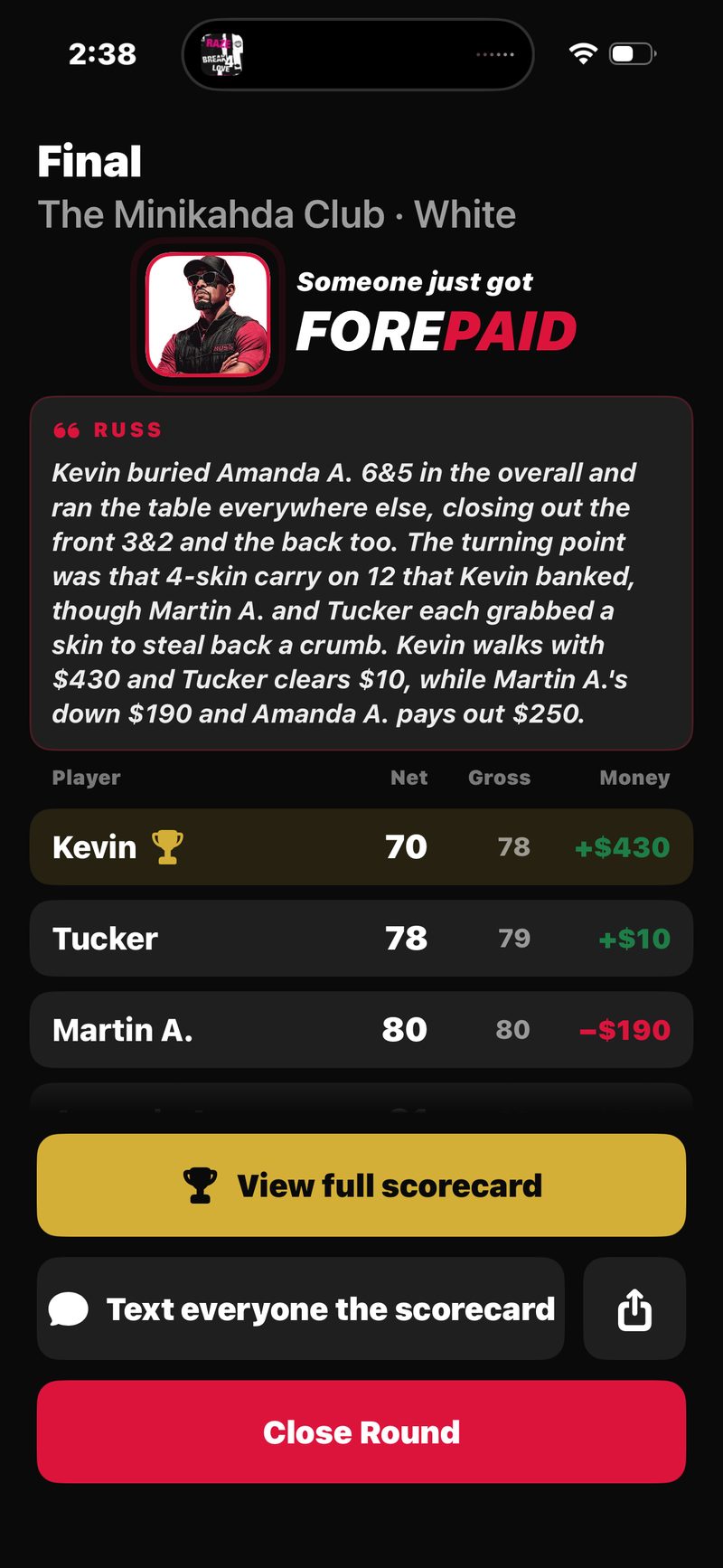
- Settle shows who owes whom, one line per pair, like “Bryan owes Martin $35.” Tap Settle up on a pair to pick how it was paid. Venmo and Cash App open with the amount filled in. Zelle copies their email or phone so you can pay in your bank app. Or pick Paid in cash or Already settled. Back from Venmo or Cash App, tap Yes, mark settled once it went through. That part is bookkeeping only.
- Share it. On the final screen, the host can tap Text everyone the scorecard to send one group text with the link to forepaid.app/r/<your-round>. Share with the group sends the trophy image and the link.
For the full settle-up flow, see Settling Up.